Methods For Utilizing Adobe Signage
For Senders
From the Senders perspective, all that is required is for a Digital Signature field to be placed on the document that is being sent.
For Document/Template Authors
Each recipient can have, at most, one digital signature field assigned to them within an agreement. Any additional signature fields that are needed can be of the standard e-signature field type.
Note that just because one signer is using a digital signature does not mean that any other signers are required to. It's perfectly allowable to have only your internal signers apply digital signatures while external signers use the e-signature field type (or vice versa).
USING DRAG AND DROP AUTHORING
Template creators will find the Digital Signature field in the Signature Fields section of the Authoring environment.
Below you can see the e-signature field on the left, and the digital signature field on the right.

The syntax for a digital signature field uses the argument :digitalsignature
For example: {{digsig1_es_:signer1:digitalsignature}}
Note:
As previously stated, there can only be one digital signature field per signer in each document.
If you add more than one Digital Signature for a signer (e.g., {{digsig1_:signer1: digitalsignature}} and {{digsig2_:signer1: digitalsignature}}), only the first is preserved and the others are automatically removed when the document is sent for signature.
BUILDING FORMS IN ACROBAT
Like all other field types, you can replicate the functionality of a Text Tag when building your documents in Acrobat by renaming the field to contain the full text tag with all arguments (but not the brace pairs on either end).

The Signer's experience
Because digital signatures are certificate-based, signers need to obtain a Digital ID before they can apply their signature. This Digital ID can be obtained from one of several cloud signature providers, or by applying the signature using Adobe Acrobat or Acrobat Reader, using a local Digital ID.
The Adobe Sign solution walks the signer through the process:
- Open the agreement, and fill in any required fields
- Choose from existing Digital IDs, or create a new one
- Apply the signature
Once the signature is applied, the signature cycle continues as normal.
OPEN THE AGREEMENT AND FILL IN THE FIELDS...
Signers are notified via email, and instructed to open the agreement by clicking the Review and sign button
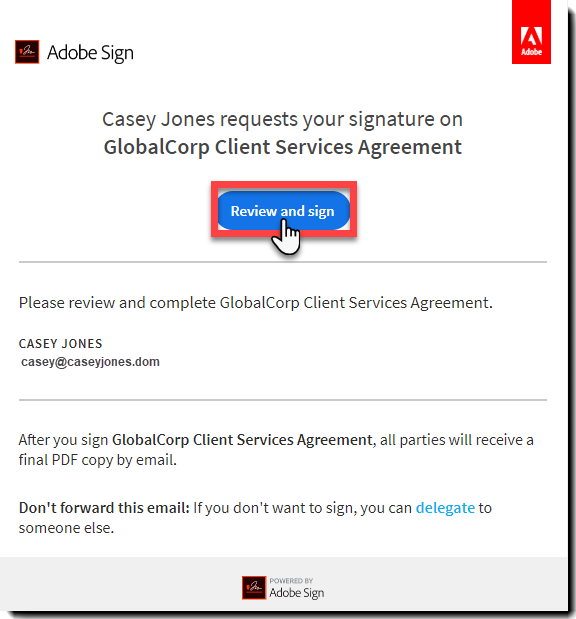
Once the document is open, the signer can read the document and fill in any fields that are needed. All required fields need to be completed before the signer can advance the signature process.
Mousing over the digital signature field prompts a text balloon with additional instructions.

Clicking the field opens an overlay asking the signer to select one of two paths:
- Cloud Signature (the instructions below follow this path)
- Download and Sign With Acrobat (Click here to jump to the download instructions)
Select the appropriate option and click Next

A new overlay is presented, asking the signer to select an identity provider from a drop-down.
- Only providers listed in the drop-down can be used
- Signers that do not have a permissible Digital ID can click the Click to get a new Digital ID link, and be routed to obtain a new Digital ID from one of several cloud signature providers.
- Once they have established a new Digital ID, they can return to the signature process.

The identity provider challenges the signer to authenticate to their service

Once successfully authenticated, the signer is presented with a list of valid Digital IDs to choose from.
- Select the Digital ID
- Click Next

A preview of the signature is presented.
- Click Edit Signature to:
- Manually sign via mouse or touch pad
- Upload a signature image
- Click OK when ready to proceed

The signer is returned to the agreement and prompted to Click to Sign

The identity provider then may require an additional, second-factor authentication.
eg: The below provider requires a static PIN, established when setting up the Digital ID, and a one-time password.
- Enter any required values, and click OK

When the second-factor authentication is successfully entered, the document is signed, and a success message is displayed.
