39.0 - Updated on 2025-11-11 by Kathy Weiss
38.0 - Updated on 2025-11-03 by Kathy Weiss
37.0 - Updated on 2025-11-03 by Kathy Weiss
36.0 - Updated on 2025-10-30 by Kathy Weiss
35.0 - Updated on 2025-10-30 by Kathy Weiss
34.0 - Updated on 2025-10-09 by Darrick Bremner
33.0 - Updated on 2025-09-17 by Kathy Weiss
32.0 - Updated on 2025-09-17 by Kathy Weiss
31.0 - Updated on 2025-09-17 by Kathy Weiss
30.0 - Updated on 2025-09-17 by Kathy Weiss
29.0 - Updated on 2025-09-16 by Kathy Weiss
28.0 - Updated on 2025-08-15 by Kathy Weiss
27.0 - Updated on 2025-08-15 by Kathy Weiss
26.0 - Updated on 2025-08-08 by Kathy Weiss
25.0 - Updated on 2025-08-06 by Kathy Weiss
24.0 - Updated on 2025-08-01 by Kathy Weiss
23.0 - Updated on 2025-07-18 by Kathy Weiss
22.0 - Updated on 2025-07-18 by Kathy Weiss
21.0 - Updated on 2025-07-18 by Kathy Weiss
20.0 - Updated on 2025-06-02 by Kathy Weiss
19.0 - Updated on 2025-03-14 by Kathy Weiss
18.0 - Updated on 2025-03-14 by Kathy Weiss
17.0 - Updated on 2024-12-04 by Kathy Weiss
16.0 - Updated on 2024-12-04 by Kathy Weiss
15.0 - Updated on 2024-12-04 by Kathy Weiss
14.0 - Updated on 2024-12-04 by Kathy Weiss
13.0 - Updated on 2024-10-15 by Darrick Bremner
12.0 - Updated on 2024-08-15 by Kathy Weiss
11.0 - Updated on 2024-06-17 by Kathy Weiss
10.0 - Updated on 2024-06-14 by Kathy Weiss
9.0 - Updated on 2024-04-11 by Kathy Weiss
8.0 - Updated on 2024-04-05 by Kathy Weiss
7.0 - Updated on 2024-04-03 by Kathy Weiss
6.0 - Updated on 2023-12-11 by Kathy Weiss
5.0 - Updated on 2023-05-31 by Kathy Weiss
4.0 - Updated on 2022-05-24 by Kathy Weiss
3.0 - Updated on 2021-07-21 by Kathy Weiss
2.0 - Updated on 2021-07-01 by Kathy Weiss
1.0 - Authored on 2020-12-08 by Kathy Weiss
Using Mobility Print from iOS and iPadOS
Important! In order to add the WolfPrint printers for Mobility Print during setup, your device must be on the NC State network. On-campus users connect to the NC State wireless network and use eduroam or ncsu. Off-campus users connect using NC State's VPN Service.
Mobility Print works just like AirPrint on iOS and iPadOS. Once your device is connected to the NC State network, no additional setup is required.
Print using the WolfPrint FollowMe Printers
- Print like you normally would from your device, selecting the desired WolfPrint FollowMe Printer.
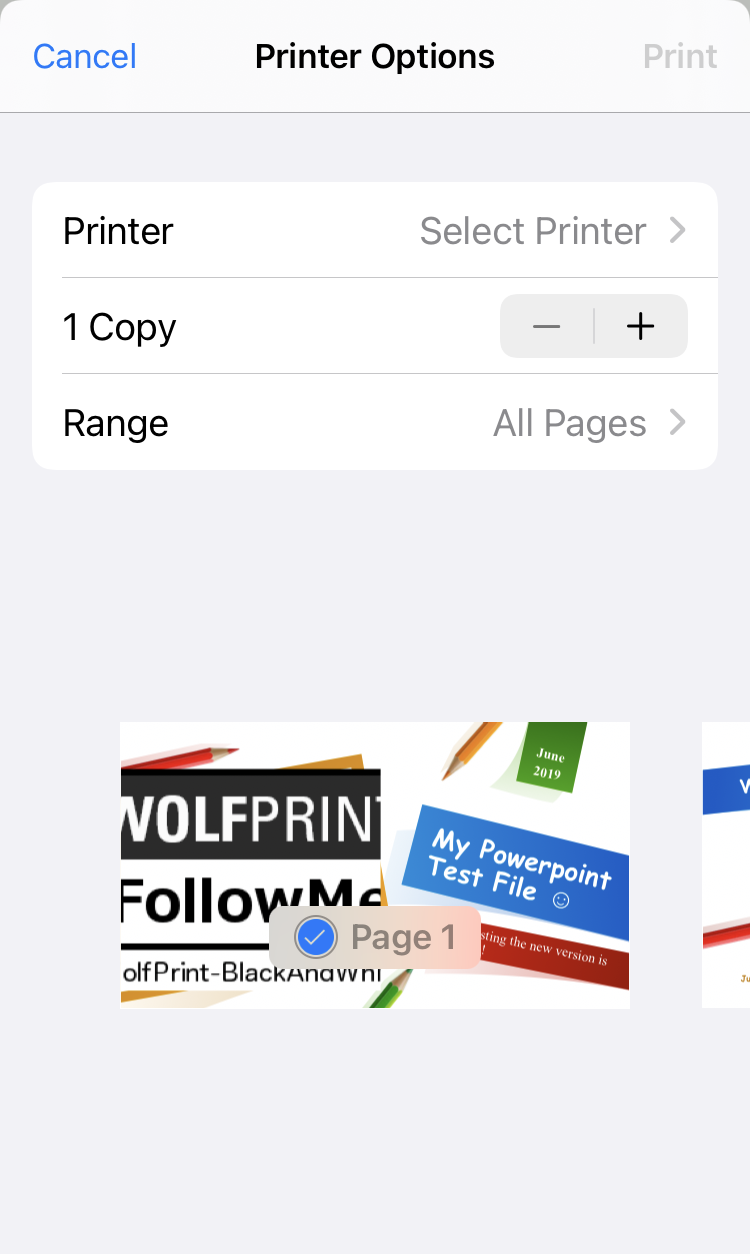
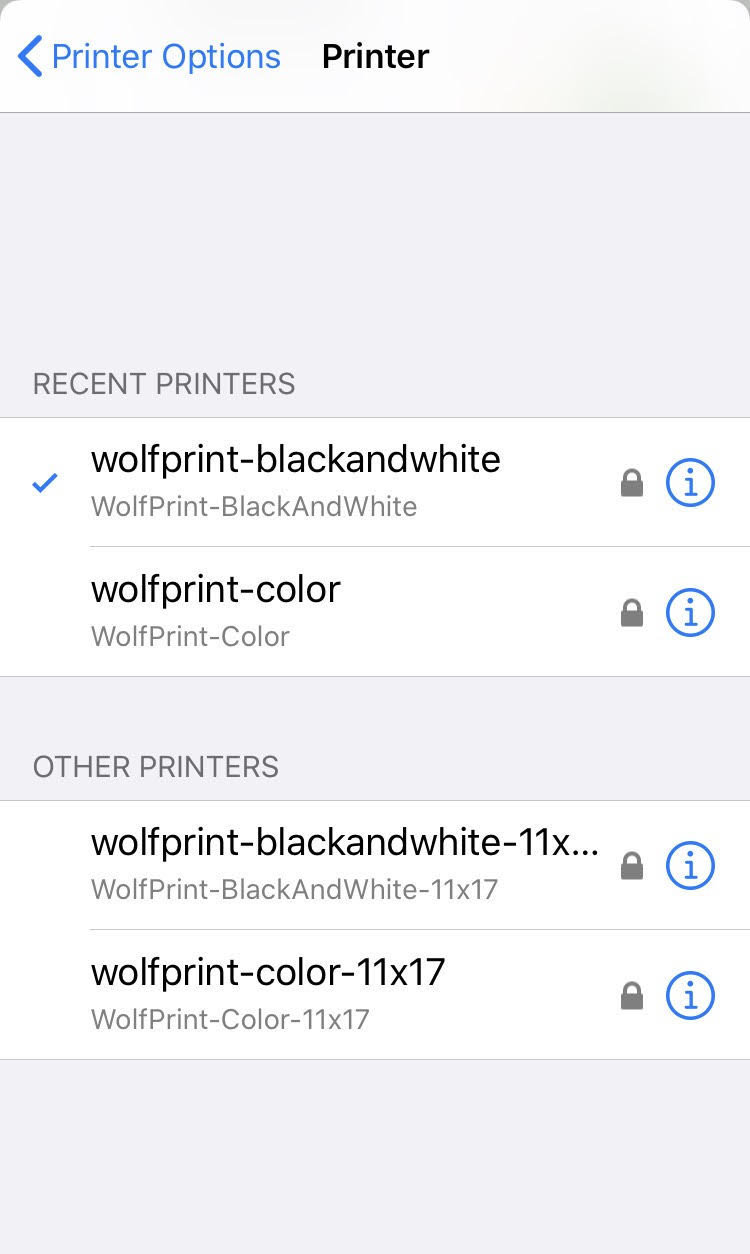
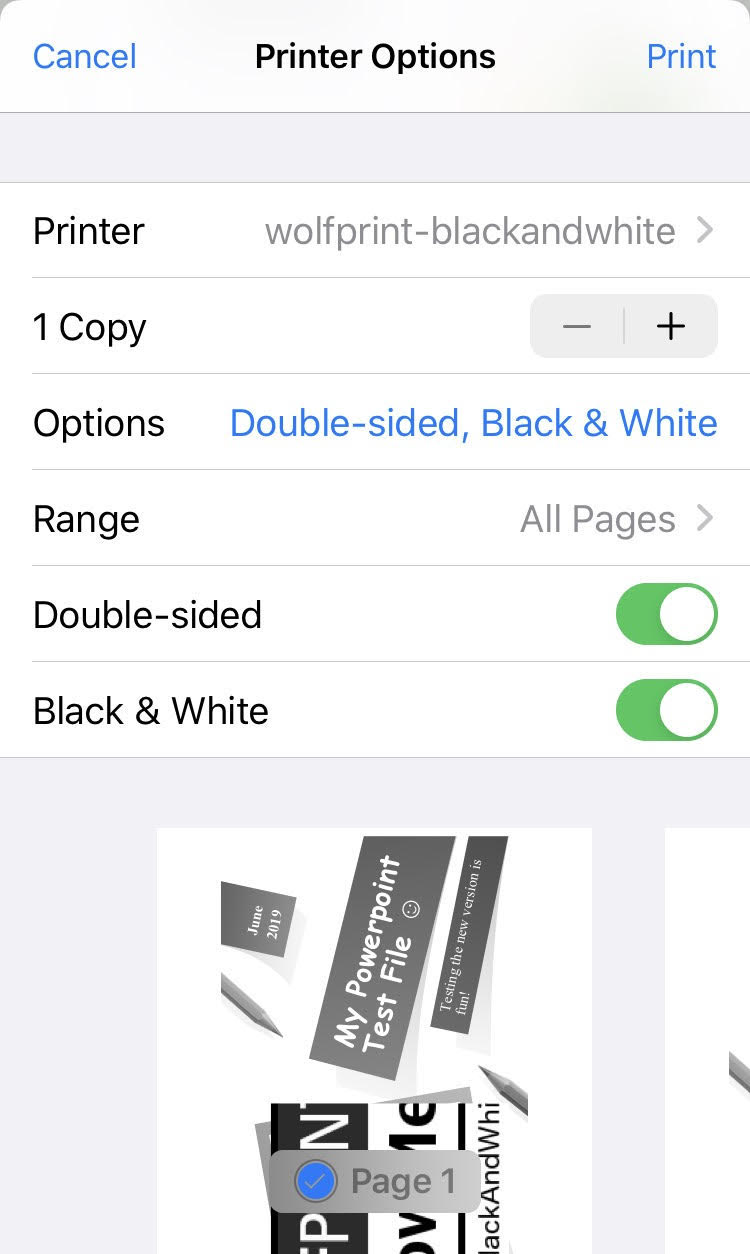
- When prompted, login with your Unity ID and password.
Important! After your print job is submitted, you must confirm it within 10 minutes by following the steps below; otherwise, it will automatically be removed from the system.
Confirm and Release your print job
- Open the PaperCut Web Client.
- Log in with your Unity ID and password.
- After a few seconds, you should get a Print Job Notification pop up.
- Select the PaperCut account to charge and then click Print.
- Another pop-up message should appear, indicating that your file is ready to print on a FollowMe printer.
- Click OK and then locate a WolfPrint FollowMe printer to release your job from.
Visit the Apple Support site for more help Using AirPrint to print from your iPhone, iPad, or iPod touch.