18.0 - Updated on 2025-06-02 by Darrick Bremner
17.0 - Updated on 2025-03-26 by David DeFoor
16.0 - Updated on 2025-03-26 by David DeFoor
15.0 - Updated on 2025-03-26 by David DeFoor
14.0 - Updated on 2024-10-15 by Darrick Bremner
13.0 - Updated on 2024-04-30 by Darrick Bremner
12.0 - Updated on 2024-04-19 by Darrick Bremner
11.0 - Updated on 2024-04-19 by Darrick Bremner
10.0 - Updated on 2024-04-19 by Darrick Bremner
9.0 - Updated on 2024-03-20 by David DeFoor
8.0 - Updated on 2023-06-28 by Joseph Hurst
7.0 - Updated on 2023-05-02 by Darrick Bremner
6.0 - Updated on 2022-07-19 by Darrick Bremner
5.0 - Updated on 2022-06-29 by Nik Davlantis
4.0 - Updated on 2022-06-29 by Nik Davlantis
3.0 - Updated on 2021-07-26 by Chadwick Seagraves
2.0 - Updated on 2021-06-25 by David Wagner
1.0 - Authored on 2019-02-26 by Chadwick Seagraves
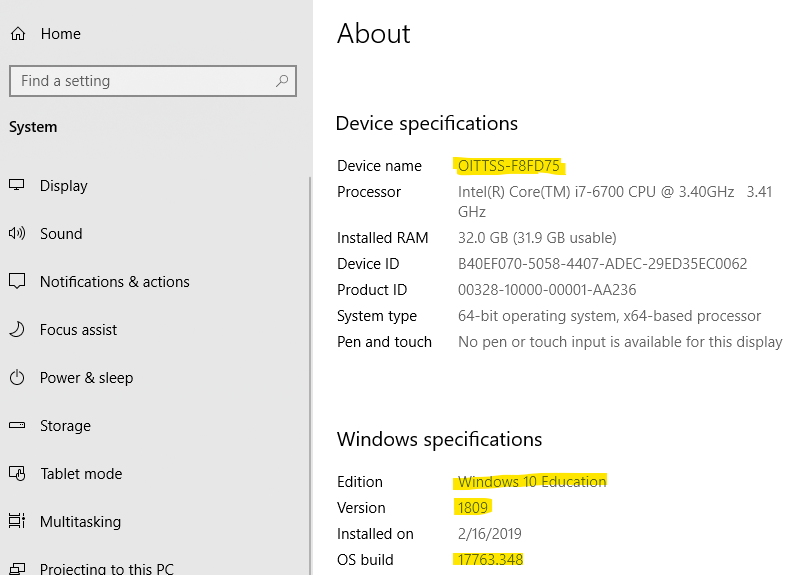
Support staff frequently need the "Computer Name" to be able to provide specific types of support. If you are logged in using your Unity ID on your Windows machine, follow these steps.
The Settings app offers build, edition, and version information in a user-friendly form.
- Hit Windows+I to open Settings.
- In the Settings window, navigate to System > About.
- Scroll down a bit and you’ll see the information you’re after.
- The name of the computer will be listed beside Device Name will generally have the following format: DEPARTMENT-6 Characters (for example: OITHELP-32DB56)
Another very quick method, that provides less system information, but still shows your version, is to use a Windows search menu or search bar and type winver