23.0 - Updated on 2025-11-11 by Kathy Weiss
22.0 - Updated on 2025-08-01 by Kathy Weiss
21.0 - Updated on 2025-05-16 by Kathy Weiss
20.0 - Updated on 2024-11-13 by Kathy Weiss
19.0 - Updated on 2024-11-13 by Kathy Weiss
18.0 - Updated on 2024-10-30 by Kathy Weiss
17.0 - Updated on 2024-10-15 by Darrick Bremner
16.0 - Updated on 2024-07-24 by Kathy Weiss
15.0 - Updated on 2024-06-26 by Kathy Weiss
14.0 - Updated on 2024-06-20 by Kathy Weiss
13.0 - Updated on 2024-06-14 by Kathy Weiss
12.0 - Updated on 2024-04-05 by Kathy Weiss
11.0 - Updated on 2024-03-25 by Kathy Weiss
10.0 - Updated on 2023-11-21 by Kathy Weiss
9.0 - Updated on 2023-11-21 by Kathy Weiss
8.0 - Updated on 2023-08-08 by Kathy Weiss
7.0 - Updated on 2023-08-08 by Kathy Weiss
6.0 - Updated on 2023-08-08 by Kathy Weiss
5.0 - Updated on 2023-05-31 by Kathy Weiss
4.0 - Updated on 2022-05-24 by Kathy Weiss
3.0 - Updated on 2021-08-09 by Kathy Weiss
2.0 - Updated on 2021-07-29 by Anika Rally
1.0 - Authored on 2019-09-25 by Kathy Weiss
To charge printing costs to a shared account, you'll need to have a valid unity ID and password, the Shared Account number and have been granted access to use the account.
1. For standard printing on a computer running the PaperCut client, select File - then "print from the application" and choose the printer. In the Print Job Notification box, select "Charge to shared account" and select the Account Number.
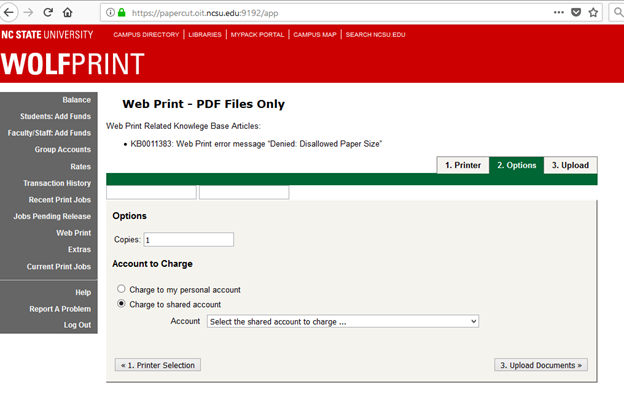
2. For Web Print, upload a pdf file using the Web Print feature on http://go.ncsu.edu/print. After selecting the printer, select Options and choose "Charge to shared account" and select shared account to charge.
3. From the Unix command line type: lpr myfile (where myfile is the name of the file to print). Then in the popup dialog box, select Options and choose "Charge to shared account" and select shared account to charge.
Standard Printing with PaperCut Client
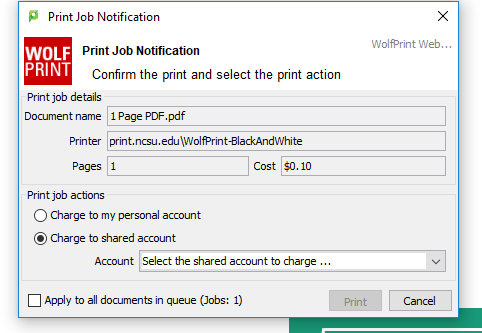
WebPrint PopUp