42.0 - Updated on 2025-04-02 by Peyton Armstrong
41.0 - Updated on 2024-10-16 by Darrick Bremner
40.0 - Updated on 2024-08-22 by Peyton Armstrong
39.0 - Updated on 2024-08-22 by Peyton Armstrong
38.0 - Updated on 2024-08-21 by Peyton Armstrong
37.0 - Updated on 2024-08-21 by Peyton Armstrong
36.0 - Updated on 2024-08-21 by Peyton Armstrong
35.0 - Updated on 2024-08-21 by Peyton Armstrong
34.0 - Updated on 2024-08-21 by Peyton Armstrong
33.0 - Updated on 2024-08-21 by Peyton Armstrong
32.0 - Updated on 2024-05-16 by Darrick Bremner
31.0 - Updated on 2024-05-03 by Peyton Armstrong
30.0 - Updated on 2024-05-03 by Darrick Bremner
29.0 - Updated on 2024-04-29 by Peyton Armstrong
28.0 - Updated on 2024-04-26 by Peyton Armstrong
27.0 - Updated on 2024-04-26 by Peyton Armstrong
26.0 - Updated on 2024-04-26 by Peyton Armstrong
25.0 - Updated on 2024-04-26 by Peyton Armstrong
24.0 - Updated on 2024-03-26 by Peyton Armstrong
23.0 - Updated on 2023-03-29 by Peyton Armstrong
22.0 - Updated on 2023-03-27 by Peyton Armstrong
21.0 - Updated on 2023-03-27 by Peyton Armstrong
20.0 - Updated on 2023-03-27 by Peyton Armstrong
19.0 - Updated on 2023-03-27 by Peyton Armstrong
18.0 - Updated on 2023-03-27 by Peyton Armstrong
17.0 - Updated on 2023-03-27 by Peyton Armstrong
16.0 - Updated on 2023-03-27 by Peyton Armstrong
15.0 - Updated on 2023-03-27 by Peyton Armstrong
14.0 - Updated on 2023-03-27 by Peyton Armstrong
13.0 - Updated on 2023-03-27 by Peyton Armstrong
12.0 - Updated on 2023-03-27 by Peyton Armstrong
11.0 - Updated on 2023-03-27 by Peyton Armstrong
10.0 - Updated on 2023-03-27 by Peyton Armstrong
9.0 - Updated on 2023-03-27 by Darrick Bremner
XCreds
What does it do?
XCreds is an application that allows login to a macOS computer using a NCSU Unity ID and password. Once logged in, XCreds keeps the local account password in sync with the NCSU Unity account by verification with the NCSU Azure cloud identity provider.
What does it look like in our environment?
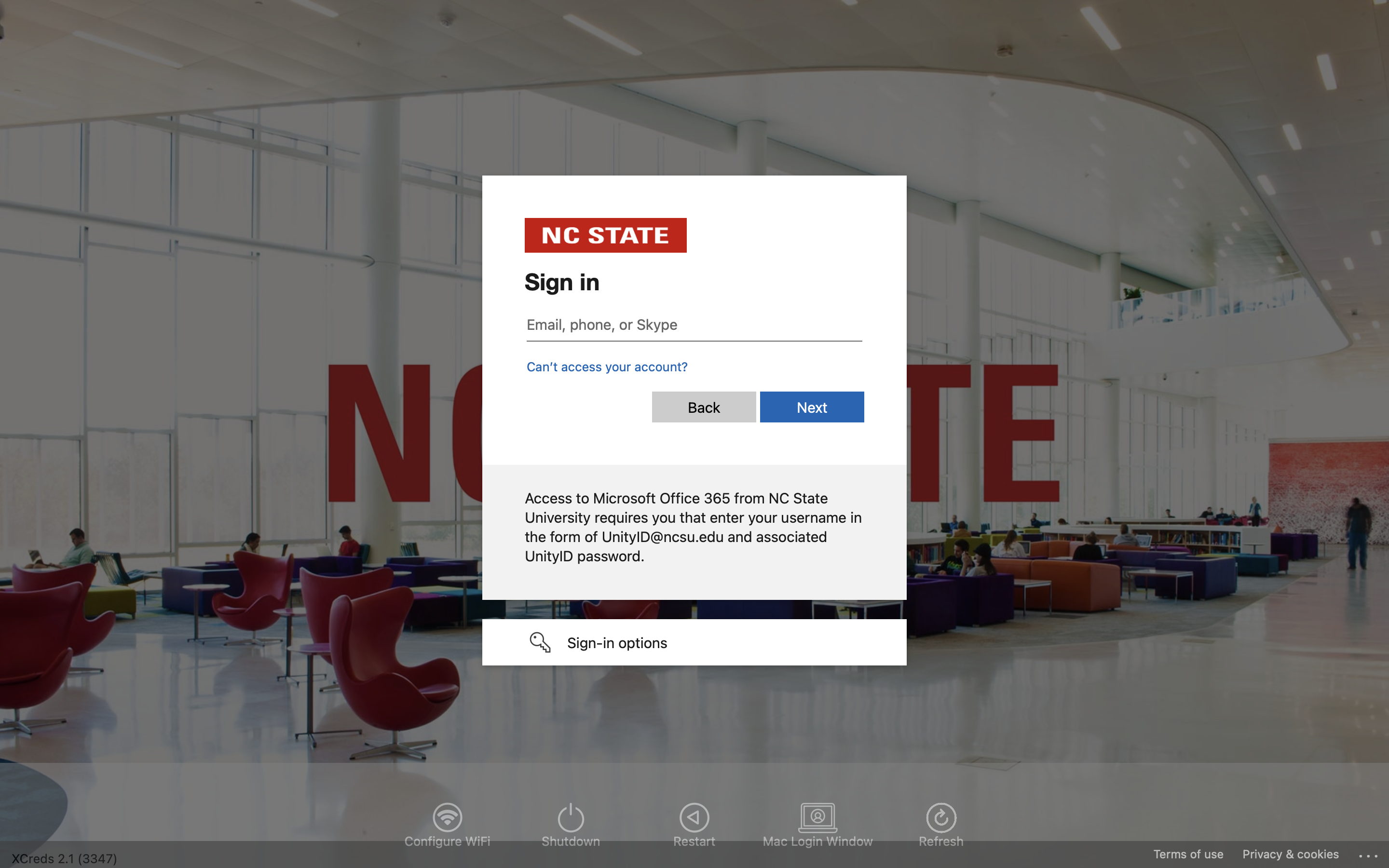
Menu bar & Password change
With XCreds installed, you will see a new icon in your menu bar. One option to notice in the dropdown is Change Password... This will take you to the The NCSU Password Change Form.
When XCreds detects that your Unity password has changed, you will receive a prompt to sync your local password (this is the password you use to login to your computer) with your new network password (your new Unity password).
Once this step is completed, your network and local passwords are now the same.
Details
The developer, twocanoes, provides a wealth of information for those that would like to have a deeper understanding of this application.
For customers of the OIT Managed Desktop Service