Table of Contents
- Which of the various Webex accounts should I request?
- How do I request a Webex account?
- How will I be billed for the Webex service?
- Do I need a Webex account to participate in a meeting?
- Which operating systems are supported for Webex?
- How do I install the Webex Meeting Application?
- How do I install Webex if I'm on a managed desktop?
- Will my webcam work with Webex?
- Participants cannot see my video.
- Why is Webex not able to detect my webcam?
- Why am I getting a Shibboleth error message when I try to log into Webex?
- Can I prevent a participant's name from being announced when they enter or exit a meeting?
- While I’m giving a presentation, can I mute participants?
- I cannot hear a participant.
- Can I record a meeting?
- How do I retrieve, share, or save a recorded meeting?
- I'm trying to play an older Webex recording that was shared with me via URL and I'm getting the error message Cannot playback due to an unknown exception.
- Can I handle an international call in my Webex meeting?
- My browser window seems stuck and is showing Please wait while we set up your meeting. What do I do?
- Is there any difference between using the Webex Meetings application on-campus vs off-campus?
Which Webex account should I request?
There are three types of accounts:
-
Standard
For customers who host a few Webex meetings per week.
Standard accounts are $10 per month. -
High usage
This is for customers who host an average of more than one Webex meeting per day, or who set up meetings in conference rooms and shared spaces.
High-usage accounts are $50 per month. -
Departmental
For departments that are planning to purchase accounts for at least 50% of their employees.
Departmental accounts are $5 per employee account.
How do I request a Webex account?
A Webex account should be requested through the ComTech Telecom and IT Billing Customer Center (PCR360 application). This is the system used to request ComTech services (e.g., a new phone line or data line). The Departmental Coordinator Search tool will help you find the person in your department who can place your order.
How will I be billed for the Webex service?
Webex charges will be billed monthly on your phone bill.
Do I need a Webex account to participate in a meeting?
No, you do not need a WebEx or WolfMeeting account to participate in a meeting. However, you must have an account to schedule and initiate a WebEx meeting.
Which operating systems are supported for Webex?
The following operating systems are supported by Webex:
Windows Vista (32-bit/64-bit)
Windows 7 (32-bit/64-bit)
Windows 8 (32-bit/64-bit)
Mac OS X 10.6 Snow Leopard
Mac OS X 10.7 Lion
Mac OS X 10.8 Mountain Lion
Apple iPhone or iPad: Apple iOS 6.0 and later
Android 2.1 and later
How do I install the Webex Meeting Application?
To install the Webex Meeting application, click the meeting link from your calendar appointment and follow the onscreen instructions. For Chrome, click Add Webex to Chrome, then install the application.
OR
Click the Run as Temporary Application link on the initial screen when you click the Webex Meetings link.
How do I install Webex if I'm on a managed desktop?
If you do not have admin rights on your managed desktop, ask your Lantech or OU Admin to add your PC to the Webex AD install package. Or, you can click the Run as a Temporary Application link on the initial screen when you click the Webex Meetings link.
Will my webcam work with Webex?
Any video camera or webcam that connects to a computer's USB or parallel port should work with Webex.
Participants cannot see my video.
Make sure your video is enabled. Click the Camera icon in the Participants window. Look in the Participants window to confirm that you have a Video Camera icon. If not, your webcam is either missing or unsupported.
Why can't Webex detect my webcam?
If you are having trouble with your webcam, make sure you are NOT running Skype or any other video or webcam software that may be using or controlling it.
Why am I getting a Shibboleth error message when I try to log into Webex?
If you are seeing this message:
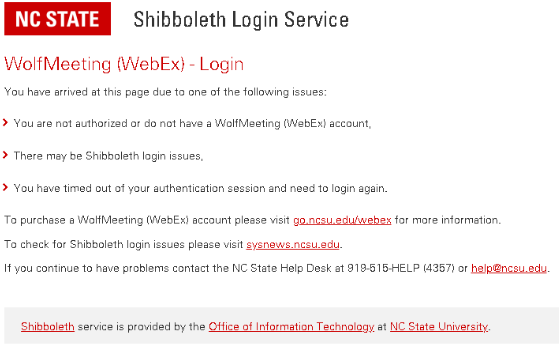
It typically means you do not have a Webex account. Confirm your account with your Departmental Coordinator. If you do not know who that is, use this tool.
If the error persists, the Shibboleth Login Service may be having login issues. Call the HelpDesk to confirm there are no issues, or check sysnews.ncsu.edu.
If you do not have an account, ask your Departmental Coordinator to order the service for you.
Can I prevent a participant's name from being announced when they enter or exit a meeting?
Yes, there are three announcement options. A beep, the participant's name, or nothing.
While I’m giving a presentation, can I mute participants?
Yes, you can mute all participants.
I cannot hear a participant.
Look in the Participants window to confirm that the participant has joined the audio portion of the meeting. You should see either a Telephone icon, a Headset icon, or a Mobile Phone icon to indicate that they have been joined by telephone or computer audio.
- Confirm you have not muted the participant. If you have, click the red microphone button to unmute the participant.
- Confirm the participant has not muted themselves on their local computer by asking them to look for this icon
in the bottom-right corner of their taskbar
- Run the Audio wizard to test the audio connection. Click Audio > Test Computer Audio from the menu bar of the Webex Meetings application and follow the on-screen instructions.
Can I record a meeting?
The meeting host can record the Webex meeting.
How do I retrieve, share, or save a recorded meeting?
At the end of your meeting, Webex will ask the host whether to share the recording with all participants. The host can choose to share it then or later.
I'm trying to play an older Webex recording shared with me via a URL, but I'm getting the error message "Cannot play back due to an unknown exception."
This typically means the Webex recording you were shared has been deleted by the owner.
Can I handle an international call in my Webex meeting?
Calling In
Using the phone number and meeting number in the invitation, a participant can call into the meeting from an international phone number.
Calling out
Instead of directly calling an international number from the Webex meeting, you must:
- Call that number from your desk phone.
- Call your desk phone from the meeting.
- "Join" the two calls.
NOTE: The outgoing international call will be billed to your department.
My browser window seems stuck and is showing Please wait while we set up your meeting. What do I do?
Refresh your browser (F5) to re-establish a connection with the Webex service or try a different browser.
Is there any difference between using the Webex Meetings application on-campus vs off-campus?
You can use either the Call Me (recommended) or I Will Call In features from the Webex Meetings application.
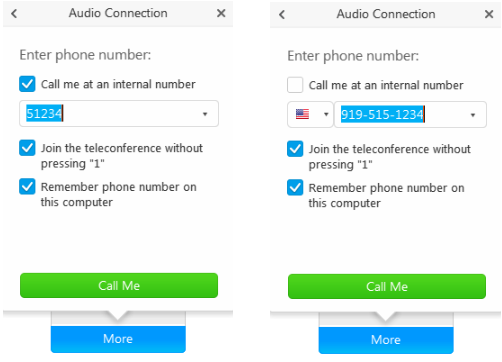
If you are conducting your meeting from on campus and a campus IP phone is in the room, use the Call Me feature. If the phone number where you are conducting your meeting is not showing in the Webex Meetings application window, click Call me at a different number and enter the 5-digit telephone number. From off-campus, uncheck the "Call me at an internal number" checkbox and enter your full 10-digit telephone number so the system can call you.